11 August 2014

LCS Diagnostic Tools - Failed to Invoke Diagnostik External Services

I just installed LCS System Diagnotic to get an overview of the functionality provided within the life cycle services. After the Installation process I started Diagnostics Services and got the following error message:
"Failed to Invoke Diagnostic External Services:  Keyset does not exist" or in german:
"Failed to Invoke Diagnostic External Services:  Der Schlüsselsatz ist nicht vorhanden"


After some research I found out that this is due to the fact that my service is running with an account which is not within the administrators group.

So I followed these steps to allow the service account to access the certificate;

  1. Start the Microsoft Management Console from the start menu (typing mmc and hitting enter is enough).
  2. Click on File > Add or remove Snap-In
  3. Select Certificates
  4. Click on Add and select “Computer account”
  5. Select “Local Computer”
  6. Click finish
  7. Under Certificates > Personal > Certificates look for the one you created
  8. Right click on the certificate and select All Tasks > Manage Private Keys…
  9. On the Security tab add the service account for the Diagnostics Service and grant full control to it.
  10. Click on accept.
  11. Restart the Diagnostics service.
That's it - Thank you Microsoft!

05 June 2014

SSRS Report Pro-upgrade remaining accruals is empty

When opening the SSRS report Accounts Payable \ Reports \ Purchase Orders \ Pro-upgrade remaining accruals (in German: Restabgrenzung von vor der Aktualisierung) I was wondering why there is no data shown on that Report.
So I tried to find out what the use of this report is. It is only populated with data if you do a data upgrade from AX 4.0 to AX 2012 with open purchase orders that are not yet invoiced. These will be schown within that report. Once all the purchase orders that were received not yet invoice in AX 4.0 get finally invoiced in AX 2012 the report is obsolete. 

20 May 2014

TDTT - Test Data Transfer Tool - Part 2

To just exprot some tables from AX 2012 navigate to the [lists] folder of the test data transfer tool and open one of the exclude files. Add the following regular expression

.*(?<!^InventTable)

This will exclude all tables except the one defined wthin the brackets. If you want to add more tables just add them in the following way

.*(?<!^InventTable)(?<!^VendTable)(?<!^CustTable)

or use regular expresseions within the brackets

.*(?<!^SysVersion.*)

16 May 2014

TDTT - Test Data Transfer Tool - Part1

The test data transfer tool is a good way to move test data from one environment to another. Always keep in mind that it transfers data from all companies. Always backup the target environment cause the import deletes all the records in tables that are part of the import.

The generall process is done in two steps. Export data from source environment and import data into target environment.

Export data from source environment

The procedure for exporting data consists of these general steps:

  1. Generate a Metadata.xml file. (This can be done on every machine running an AX 2012 R2 Client)
    1. Import the MetadataXMLGenerator.xpo into the environment where you want to export data from.
    2. After the import is done open the aot and run the job. This will take some time. After two cups of coffee you'll get an infolog with the path where the Manifext.xml is stored.
    3. Copy the generated Manifest.xml into the [Lists] folder of the test data transfer tool C:\Program Files(x86)\Microsoft Dynamics AX 2012 Test Data Transfer Tool (Beta)\[Lists]
  2. Determine which data to export (This must be done on the SQL Server)
    Check the Exclude….txt files to define what tables will be exported.
  3.  Run the tool (This must be done on the SQL Server)
    1. Open a command prompt.   
    2. Change directory
      cd "c:\Program Files (x86)\Microsoft Dynamics AX 2012 Test Data Transfer Tool (Beta)
    3. DP.exe Export E:\Temp\TDTT20140102 AX2012R2CU7_TEST
      DP.exe Export "folder" "db"
      This will also take 10 to 15 minutes depending on the performance of the SQL Server.
Import data into target Environment
  1. Run the tool (This must be done on the SQL Server)
    1. Open a command prompt.   
    2. Change directory
      cd "c:\Program Files (x86)\Microsoft Dynamics AX 2012 Test Data Transfer Tool (Beta)
    3. DP.exe Import E:\Temp\TDTT20140102 AX2012R2CU7_DEV
      DP.exe Import "folder" "db"

08 May 2014

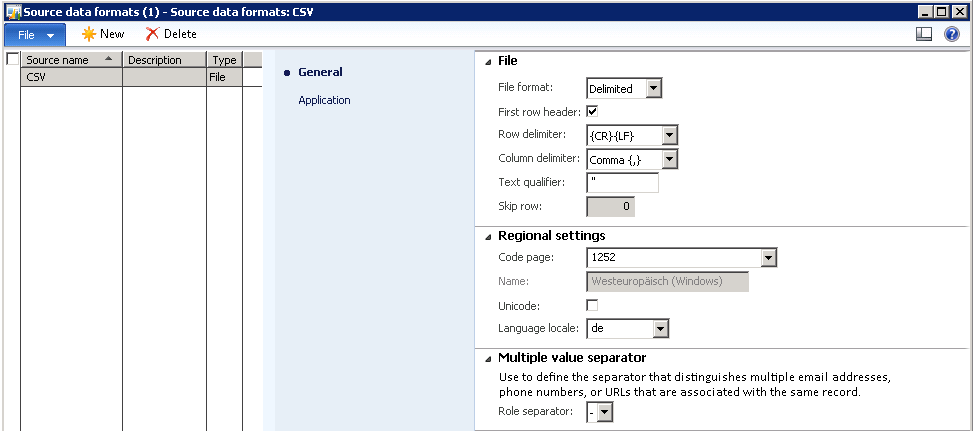
Data Import Export Framework escape text qualifier

If you want to import text with the DIXF (DMF) that is delimited with a text qualifier you Need to take care that the text qualifier does not accure within the text.

1;"example "test" text";123

This will lead to an error. Actually Microsoft suggests to use a unique text qualifier. One possible Option is to use more than one character:

1;@@example "test" text@@;123

Another way to deal with this is to escape the occuring character within the text. Due to the fact that you cannot specifiy the escape string in AX I tried several ways to do the escape. \" is not working. Instead you have to double the character:

1;"example ""test"" text";123

This will Import the text example "test" text into the database.


16 April 2014

Starting AX2012 with a specific configuration file

I was just providing access to an ax environment through Citrix. The goal was to provide an .axc configuration file that directs the Client to a specific AOS. So i was looking for a startup command that could help. And tried to use ax32.exe -regConfig. But it's even easier, you just need to place the config file behind the ax32.exe. Thats it :)

“C:\Program Files (x86)\Microsoft Dynamics Ax\60\Client\Bin\Ax32.exe” “X:\DynamicsAXConfigurations\AX2012R2_TEST.axc”

02 April 2014

RapidStart Connector log folder

If you are not able to start the RapidStart service for Dynamics AX you should always check the RapidStart log which is located within the AppData folder:

C:\Users\userXYZ\AppData\Local\Temp\Microsoft.Dynamics.Framework.RapidStart.Connector\8.2.327.0

The userXYZ is the RapidStart service account. In that folder you will find a file named RapidStartConnector.log

which will display messages like [8.2.327.0][2014-04-02 13:07:09][Information] Unable to configure shared folder Unable to log on to Microsoft Dynamics AX.

This messages are not available in the eventLog.